Watch
The videos use sample prices and virtual money, so nothing you see is a real trade. Start with the tour, then watch the short clip for each tool.
Your first practice trade, step by step
A two-minute tour of the free Practice account.
DefiExchange in under two minutes
Practice trading, plus the tools that show your risk first.
Practice trading
Place a trade with a stop-loss.
The Signal button
A risk calculator, not a prediction.
Arbitrage scanner
Price gaps after fees.
Gold simulator
Long or short with virtual dollars.
Step-by-step guide
Every tool can be tried in Practice first. Open a section to see the steps.
Start here: five rules for every tool
- Practice first. A Practice account starts with 10,000 virtual USDT on live market prices. No real order is ever sent.
- A tool follows rules; it does not predict. Our own tests of the Signal rules lost money, and the Signal window says so. Treat every signal as a risk calculator.
- Never give a key withdrawal permission. An exchange key for these tools needs trading only. If a site asks you to turn on Withdraw, stop.
- Use a stop-loss. It is held by the exchange, so it still works if your browser is closed.
- Only risk what you can afford to lose. Leveraged products can lose your whole margin.
Practice or live? The top bar says Practice · live prices in practice mode and LIVE · real money when real orders are possible. If you are not sure which you are in, do not press Buy, Sell or Open.
Practice trading
You can place your first practice trade in about two minutes, with no deposit and no card.
- Create a free account with your email and a long password, then open the trading terminal and press Practice.
- The trade page opens with 10,000 virtual USDT. Check that the top bar says Practice · live prices.
- Pick a market at the top left (ETH-USDT by default) and a chart time (1m to 1D).
- In the order box on the right choose Market, Limit, Stop or TP/SL, then Buy or Sell.
- Set the size with the box or the 25 / 50 / 75 / 100% buttons. Tick Add take-profit / stop-loss and fill both, so the trade has an exit if it goes wrong.
- Leave Confirm before sending ticked and press the green button. Your position shows in Balances, Open Orders and Trade History under the chart.
Practice results never carry over to real money, and they do not predict real results.
Signal button and trading bots
The Signal is a risk calculator, not a prediction. It reads recent prices with fixed, visible rules and fills your order form with an entry, a take-profit, a stop-loss and a size for the risk you pick.
- On the trade page press Signal — entry, TP, SL & size.
- Read the window. If it says WAIT, there is no setup right now, and that is a normal answer.
- If it says BUY, choose how much of your account you are willing to lose on the trade. The window shows the lot size that matches.
- Press the fill button. Your order form is filled in. Check it, then send it yourself.
| Bot | What it does | Where it starts |
|---|---|---|
| Grid | Places buy and sell orders in a price range and repeats them. | Practice (virtual money) |
| DCA | Buys a fixed amount again and again over time. | Practice |
| Signal bot | Checks the Signal every 30 seconds, buys only when it says BUY, then places a take-profit and stop-loss pair. One position at a time. | Practice, then real money only after you confirm |
On real money the exit orders sit on the exchange, so they still work if the page is closed. Keep Max per entry low, start in Practice, and watch the Bot tab log to see why the bot did or did not trade. The bots are experimental and none is a promise of profit.
Arbitrage scanner
The Arbitrage tab compares prices across exchanges and shows what is left after fees. It shows prices only: it never places a real order.
- Open the Arbitrage tab under the chart.
- Read the note at the top. Arbitrage means buying a coin where it is cheaper and selling it where it is dearer.
- For each coin the table shows the best buy price on one exchange, the best sell price on another, and the result after trading fees.
- Use the calculator to try your own amount, then the practice buttons to run the trade with virtual money.
Most of the time you will see a small loss after fees. That is normal, and it is the first lesson. A real gap is rare, small and closes in seconds, and in real life you also pay to move coins between exchanges and wait for them to arrive.
Gold study and gold practice
The Gold tab has two parts: an always-on study of gold, and a gold CFD simulator you trade with $10,000 of virtual money. Nothing in it places a real order.
The study watches gold around the clock and records LONG or SHORT signals with the outcome of each, so you can see a track record instead of a promise. Read the warning box at the top first: past signals do not predict future ones.
The practice account:
- Open the Gold tab and find the practice section.
- Choose Buy (long) if you expect gold to rise, or Sell (short) if you expect it to fall.
- Enter a size in ounces, pick leverage (1x, 2x, 5x, 10x or 20x), and set a stop-loss and take-profit.
- The line under the form shows the fill price, the position value, the margin needed, and how many dollars you gain or lose for every $1 gold moves.
- Press Open trade. Close it by hand, or let the stop-loss or take-profit close it.
The simulator adds a small spread and a daily holding cost, and closes your trade if your losses eat half of the margin (a stop-out). Reset practice account puts the balance back to $10,000.
Connecting your exchange safely (real money)
To trade real money you add an exchange API key to your vault. The vault is encrypted with a passphrase only you know. Some regions, including Ontario, restrict KuCoin, so check what is allowed where you live first.
- On KuCoin, create a new API key. Tick General and Spot Trading only. Leave Withdrawal, Transfer and Margin off.
- Restrict the key to the server's IP address when KuCoin offers it. Copy the key, the secret and the API passphrase you chose.
- On the trade page press Vault (top right) and add the key. Choose a vault passphrase of at least 10 characters that you do not use anywhere else.
- The button changes to Unlocked. You can trade now. Press it again to lock when you are done.
The vault locks by itself when you sign out and whenever the server restarts, for example after an update. Unlock it again with your passphrase.
Questions and troubleshooting
| Question | Answer |
|---|---|
| Is the Practice account real money? | No. It uses virtual money on live prices and sends no real orders. |
| Are signals financial advice? | No. They apply fixed, visible rules to recent prices. They are not predictions and they are not guarantees. |
| The Signal says WAIT. | There is no setup now. Waiting is a normal result. |
| The bot did nothing. | Open the Bot tab log. It explains each skip, for example the Signal was not BUY, the size was too small, or the daily limit was reached. |
| Arbitrage always shows a loss. | That is normal. Fees usually take more than the gap, which is the lesson of the tool. |
| The Vault button says Vault, not Unlocked. | Press it and enter your vault passphrase. It locks again after every server restart and when you sign out. |
| Can I lose more than I put in? | On leveraged products you can lose your whole margin, and on some brokers' gold CFDs more than that. Use stop-losses and small sizes. |
| The page looks old after an update. | Press Ctrl+F5 to reload without the saved copy. |
Need help? Use the chat widget on this site or the contact details in the footer.
Get the app on your phone
DefiExchange Trade installs on iPhone and Android as an app icon on your home screen. It opens full screen, like any app. There is nothing to download from an app store.
Android (Chrome)
- Log in at defiexchange.ca and open Trade.
- Tap Install on the banner that appears at the bottom. If you do not see it, tap the menu (three dots) in Chrome and choose Install app or Add to Home screen.
- Open DX Trade from your home screen. You are already signed in.
iPhone and iPad (Safari)
On iPhone the app must be added from Safari, and it keeps its own sign-in, so there is one extra step: a short one-time code.
- In Safari, log in at defiexchange.ca and open Trade.
- Tap the Share button (the square with an arrow), scroll down and tap Add to Home Screen, then Add.
- Back in Safari, tap Get my sign-in code in the box at the bottom of the terminal. You get a code like ABCD-EFGH.
- Open DX Trade from your home screen and type the code. It works once and runs out after 5 minutes. You can ask for a new one.
Good to know
- Live prices need internet. Without a connection the app shows an offline page. Nothing is stored on your phone: no prices, balances or keys.
- It is the same terminal. Practice account, Signal, Arbitrage, Gold and the bots work as on the computer, and your exchange keys stay in your own vault.
- Stop-losses live on the exchange. They keep working if you close the app.
- Computer. In Chrome or Edge you can also install it from the icon at the right end of the address bar.
Plans and prices
Start free with the Practice account. Pay only when you want to connect your own exchange and use the trading tools. All prices are in Canadian dollars.
Free
- Practice account with live prices and virtual money
- Learn lessons
- Arbitrage scanner with practice trades
- Gold study and gold practice trading
Trader
- Signal button: entry, take-profit, stop-loss and size
- Take-profit, stop-loss and stop orders
- One-click order fill
- Grid and DCA trading bot
Pro
- Everything in Trader
- Automatic Signal bot (experimental, simulation first)
- Trending-coin auto-pick
- Priority support and new Pro tools
Subscribe before 31 December 2026 and keep your launch price for as long as you stay subscribed. Pay yearly and get two months free. A one-time setup fee of C$135 at launch (C$150 regular) is added to your first payment only. Pay by card, Interac e-Transfer or USDT.
Automated tools are experimental and start in simulation with no real money. Prices and plans may change. Crypto trading carries risk and you can lose money. Nothing here is financial advice.
Flyer and sharing
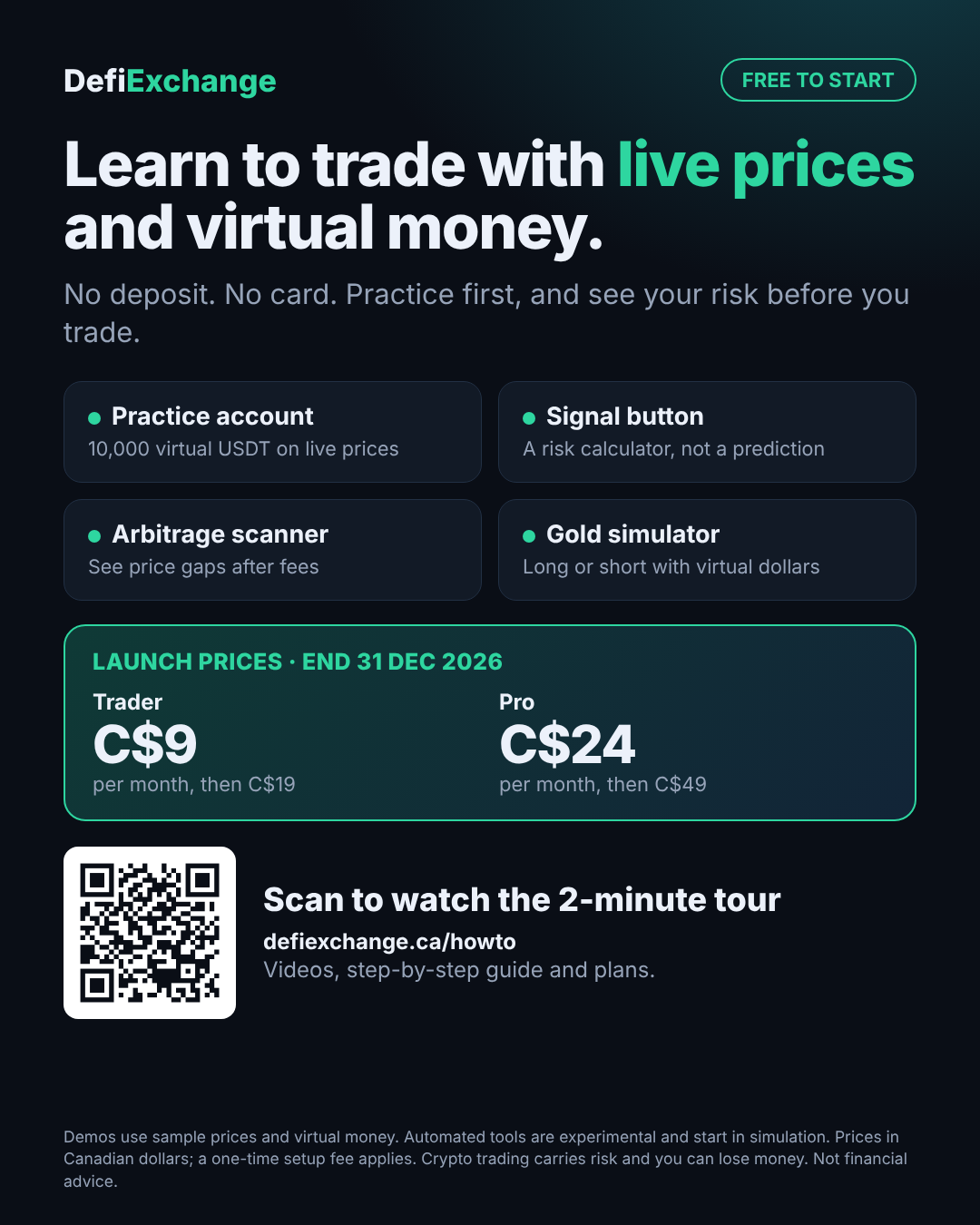
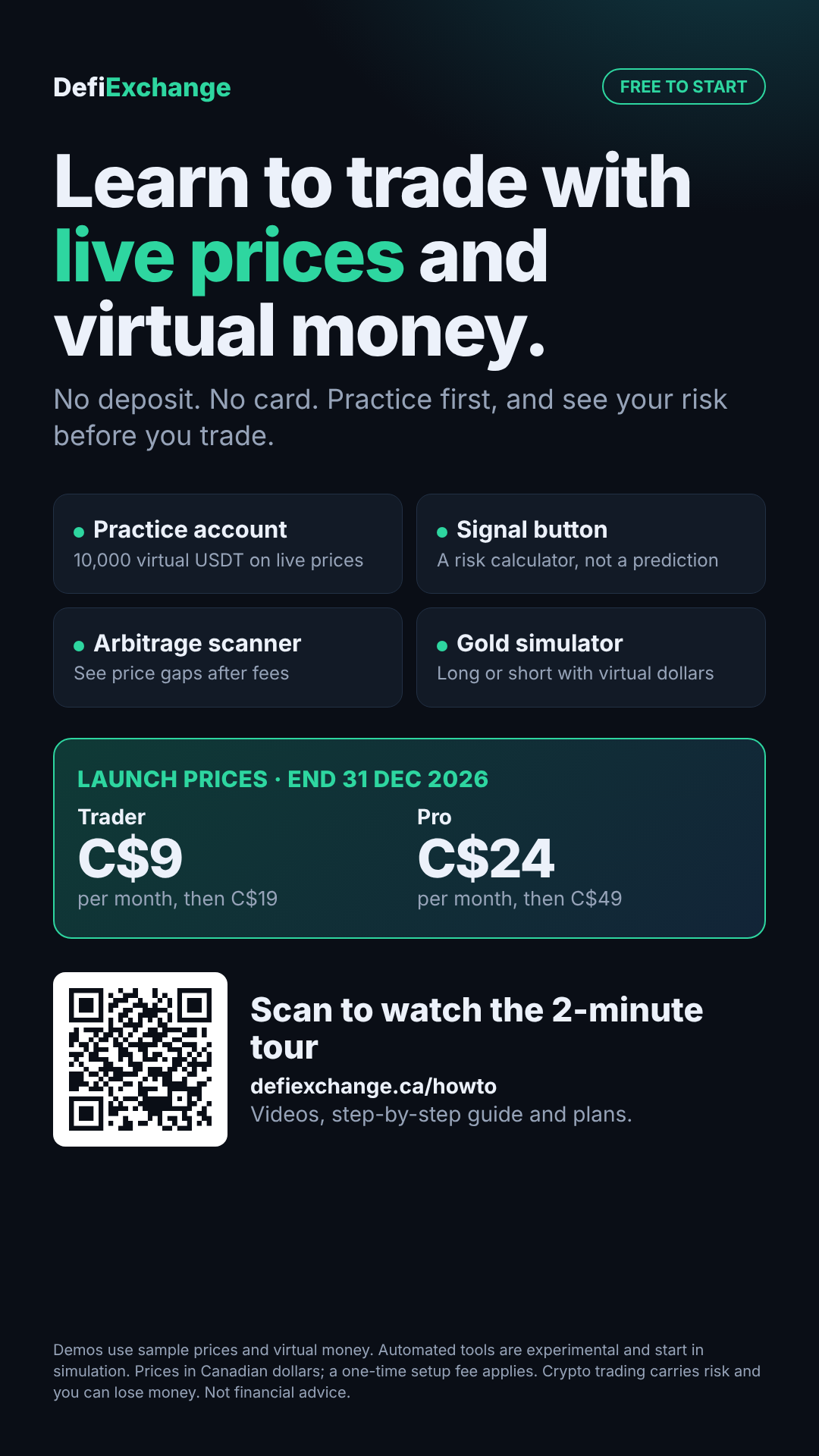
Share DefiExchange with a friend. Save the flyer and send it on social media or WhatsApp, or copy the message below.
Message to send